
Learn how to extract video and audio links from YouTube, Vimeo, and SoundCloud to create your own personal playlists on UFlix without using up your storage space.
1. Why Use External Links?
Downloading heavy files fills up your device's storage instantly. Plus, switching between YouTube, Vimeo, and SoundCloud makes your media collection disorganized. UFlix acts as the ultimate "Hub" allowing you to pull video and audio links directly into one single, premium dashboard. No downloads required!
2. Step-by-Step Guide
It's incredibly easy. Just follow these steps:
Pulling Video Links:
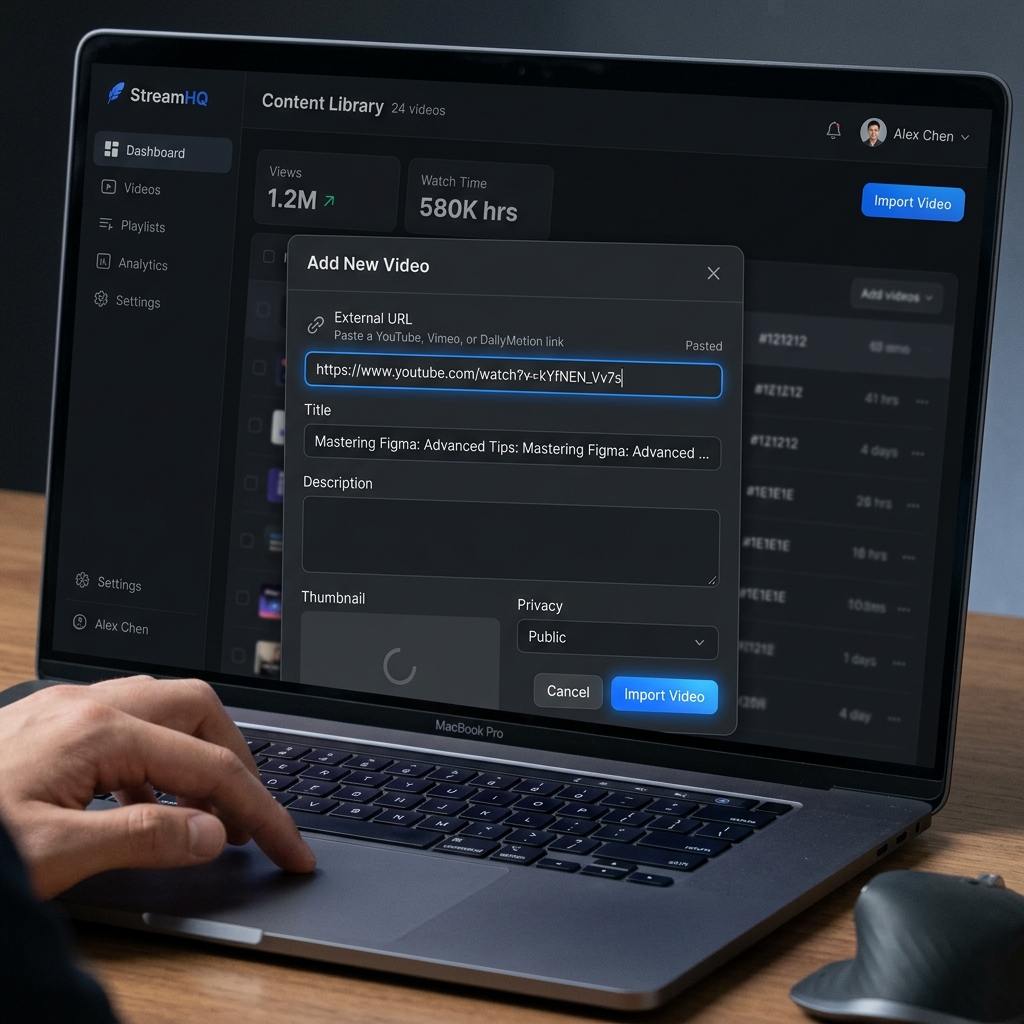
- Go to your favorite video on YouTube or Vimeo and click Share -> Copy Link.
- In UFlix, click the Add Video button.
- Paste the link into the External URL field and hit save. The video will now play seamlessly within UFlix!
Creating a SoundCloud Music Playlist:
- Copy the link to your favorite track from SoundCloud.
- Paste it into UFlix and type "Music Playlist" in the Category field.
- You now have a premium, organized music listening station.
3. Manage Your Library Like a Pro
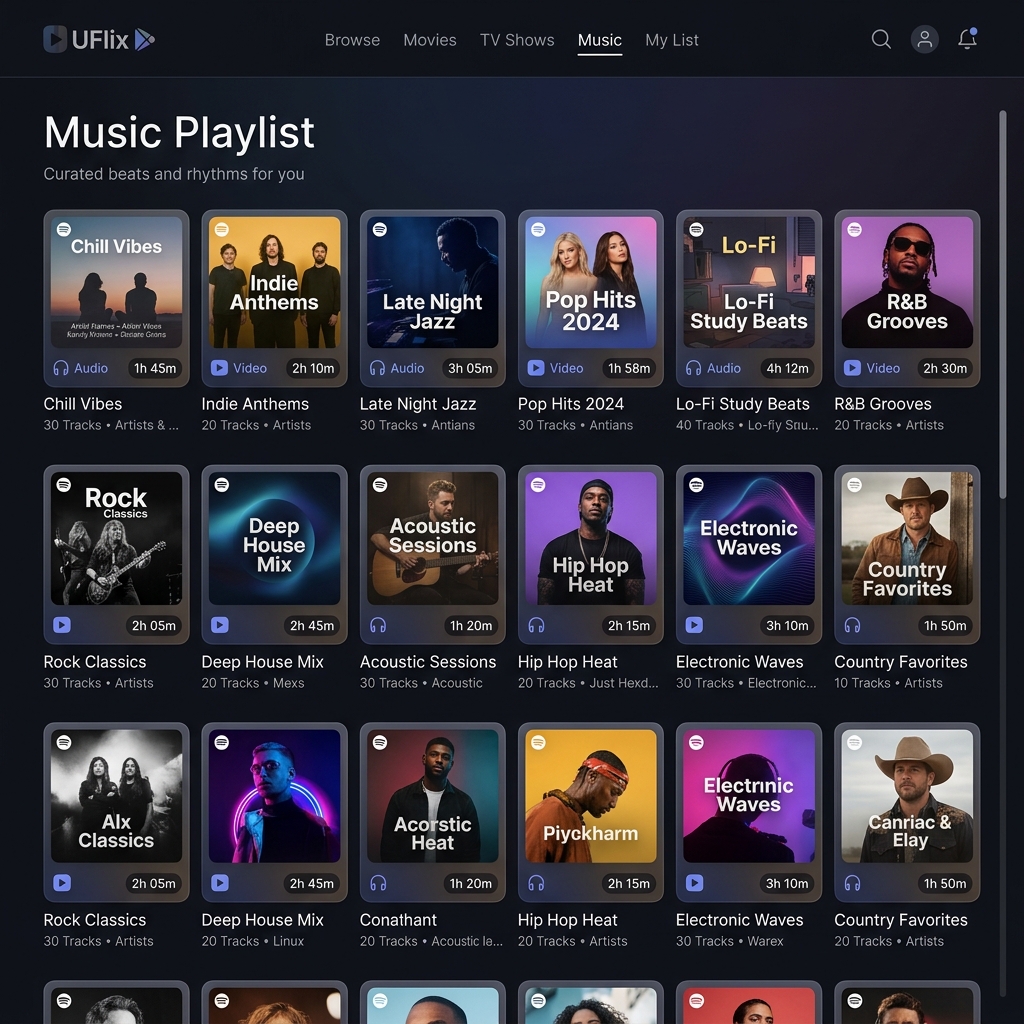
Once you've added your media, you can quickly rearrange them into folders and add custom cover art to make your dashboard look like a world-class streaming app.

Organize your top 5 favorite YouTube videos today and enjoy having a personalized, clutter-free media hub!